
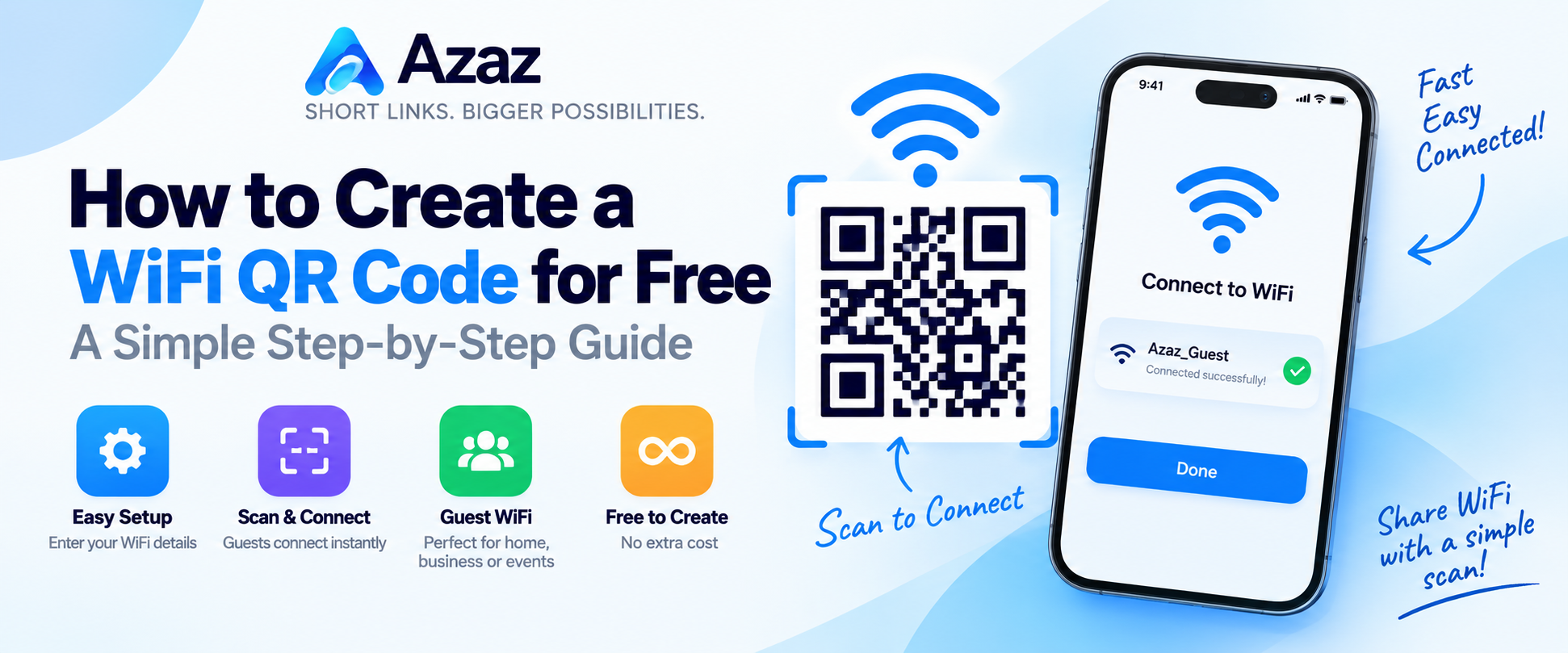
Sharing a WiFi password with guests can be inconvenient, especially when the password is long or difficult to type. A WiFi QR code gives people a much easier way to connect to your wireless network.
With the Azaz QR Code generator, you can create a WiFi QR code for free. Guests can scan the code with a compatible phone and use the network information contained in the QR code.
What is a WiFi QR code?
A WiFi QR code stores information about a wireless network in a scannable format. Instead of manually entering the network name and password, a visitor can scan the QR code with a compatible device.
A WiFi QR code can contain information such as:
- Your WiFi network name (SSID)
- The network password
- The network security type
How to create a WiFi QR code with Azaz
1. Open the Azaz QR Code generator
Go to the Azaz QR Code generator to start creating your QR code.
2. Select the WiFi QR code option
Choose the WiFi option from the available QR code types. This lets you enter the information needed for your wireless network.
3. Enter your WiFi network information
Enter your network name exactly as it appears on your router or device. Then provide the required network details, including the password and appropriate security option.
Check the information carefully. An incorrect network name or password can prevent the QR code from working as expected.
4. Customize your QR code
Use the available design options if you want to personalize the appearance of your QR code. Keep strong contrast between the code and its background so phone cameras can scan it easily.
5. Generate and preview the QR code
Generate the QR code and review the preview before using it. Make sure the entire code is clearly visible and has enough empty space around it.
6. Test the WiFi QR code
Before printing or sharing the QR code, test it with a phone. Scan it and confirm that the network information is recognized correctly.
Testing is especially important before placing the code on signs, menus, cards, or other printed material.
7. Download your QR code
Once you've confirmed that everything works correctly, download your QR code and use it wherever your guests need WiFi access.
Where can I use a WiFi QR code?
WiFi QR codes can be useful anywhere you regularly provide wireless network access to visitors.
- Homes: Give friends and family an easier way to access your guest WiFi.
- Restaurants and cafés: Place a QR code where customers can easily find it.
- Hotels: Provide WiFi information in rooms or reception areas.
- Offices: Make guest-network access easier for visitors.
- Events: Provide attendees with convenient network information.
- Waiting areas: Display the code for guests who are allowed to use the network.
Should I use my main WiFi network?
If your router supports a separate guest network, consider using that network when providing WiFi access to visitors. A guest network can help keep visitor access separate from devices on your primary network.
Check your router's documentation or settings to see whether a guest-network feature is available.
Does a WiFi QR code hide my password?
No. A QR code should not be treated as a way to keep a WiFi password secret. The network information encoded in the QR code may be readable by devices or QR decoding tools.
Only display a WiFi QR code where you are comfortable sharing access to that network.
Tips for a reliable WiFi QR code
- Check the network name: Enter the SSID exactly as configured.
- Check the password: Make sure there are no missing or incorrect characters.
- Select the correct security option: Use the setting that corresponds to your network.
- Test before printing: Scan the final code using a compatible phone.
- Keep good contrast: Avoid designs that make the QR pattern difficult to recognize.
- Print it clearly: Make sure the code is large and sharp enough to scan comfortably.
Can I create QR codes for other things?
Yes. Azaz supports multiple QR code types, so you can create codes for different kinds of information in addition to WiFi networks.
You can also create a QR code that points to a website, an Azaz short link, or an Azaz Bio Page.
Create your free WiFi QR code
A WiFi QR code can make it much easier for guests to access a wireless network without manually entering connection details. Enter your network information, generate the code, test it, and then place it somewhere convenient for your visitors.