
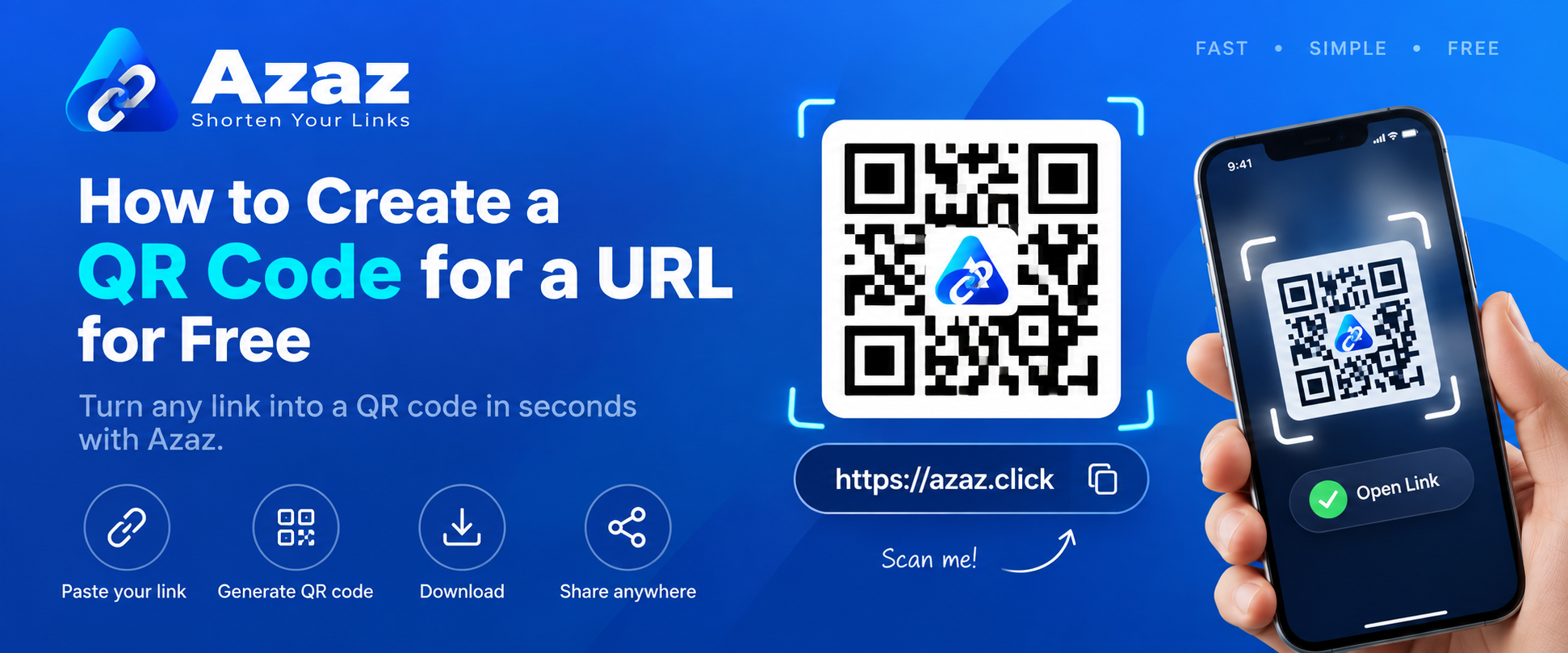
QR codes make it easy to share a website, page, or online resource without asking someone to type a long address. With Azaz, you can create a QR code for a URL for free in just a few steps.
What Is a URL QR Code?
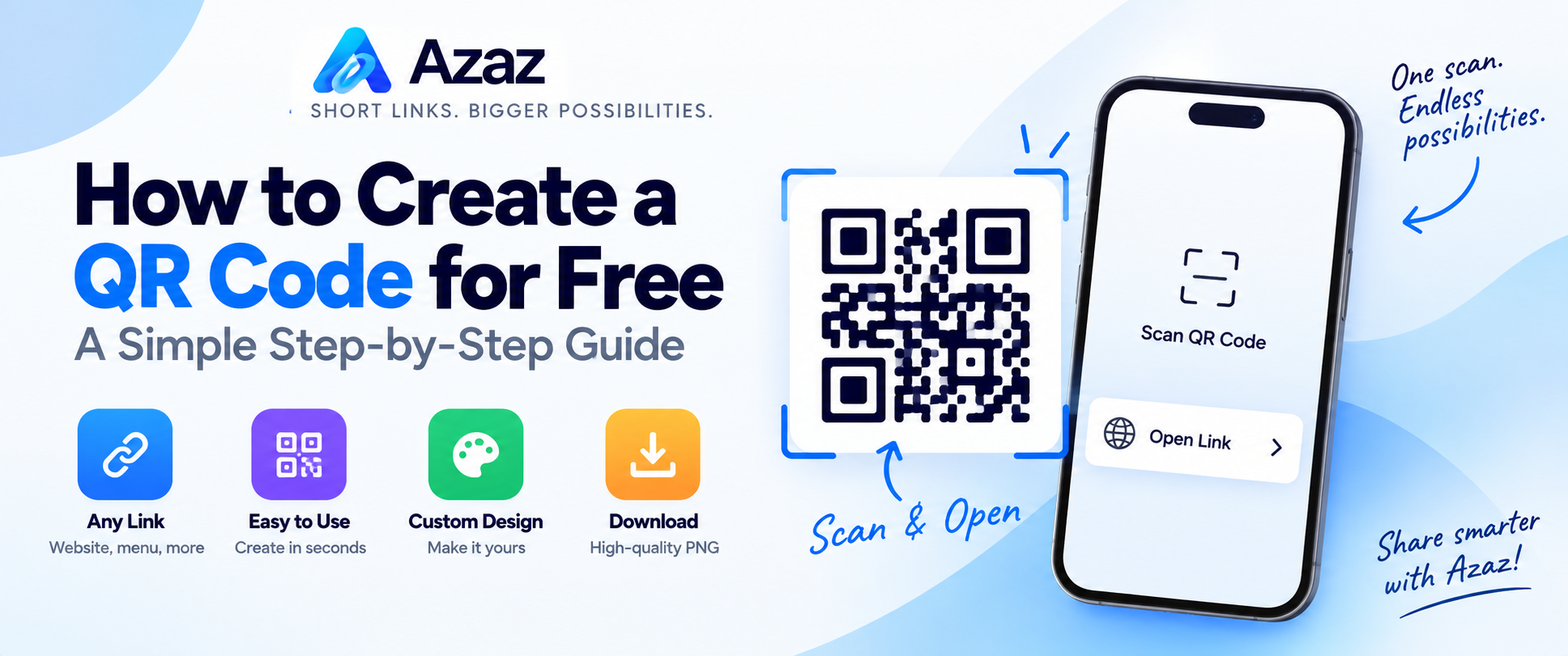
A URL QR code is a QR code that contains a web address. When someone scans the code with their phone camera or QR scanner, they can open the linked page directly.
You can use a URL QR code for websites, short links, product pages, social profiles, menus, event pages, contact pages, and many other online resources.
How to Create a QR Code for a URL with Azaz
1. Open the Azaz QR Code Generator
Go to the Azaz QR Code Generator. You can create a QR code directly from your browser.
2. Select the URL Option
Choose the URL QR code type and enter the web address you want people to visit.
For example:
https://example.com
Make sure the URL is correct before generating your QR code.
3. Generate Your QR Code
After entering your URL, generate the QR code. Azaz will create a scannable QR code containing your web address.
4. Test the QR Code
Before sharing or printing it, scan the QR code with your phone. Check that it opens the correct URL and that the destination page works properly.
5. Download and Share It
Download your QR code and use it wherever you need it. You can place it on digital pages, printed materials, signs, menus, business cards, posters, and more.
Why Use a QR Code for a URL?
A QR code gives people a quick way to reach your link without manually typing it. This is especially useful when a URL is long or when the link needs to be shared in the physical world.
For example, you can use QR codes to:
- Send visitors to your website
- Share an online menu
- Open a registration or booking page
- Share a social media profile
- Direct customers to a product page
- Share an event or information page
Should You Short the URL First?
You can use the original URL directly, but you may also want to shorten a long link before turning it into a QR code.
Azaz includes a free URL shortener, so you can create a short link first and then use that link in your QR code.
Tips for Using QR Codes
- Always test the QR code before publishing or printing it.
- Make sure there is enough contrast for easy scanning.
- Do not make a printed QR code unnecessarily small.
- Leave some clear space around the QR code.
- Check that the destination page works well on mobile devices.
Frequently Asked Questions
Can I create a QR code for a URL for free?
Yes. You can use the Azaz QR Code Generator to create a QR code for a URL for free.
Can a QR code open a website?
Yes. A URL QR code can contain a website address. When scanned, the user's device can open that address in a web browser.
Can I use a shortened URL in a QR code?
Yes. You can shorten your URL with Azaz and use the resulting short link when creating your QR code.
Should I test my QR code before using it?
Yes. Always scan the finished QR code yourself before publishing or printing it to make sure it points to the correct destination.
Create Your URL QR Code
Ready to make one? Open the Azaz QR Code Generator, enter your URL, generate your QR code, and download it for use online or offline.