
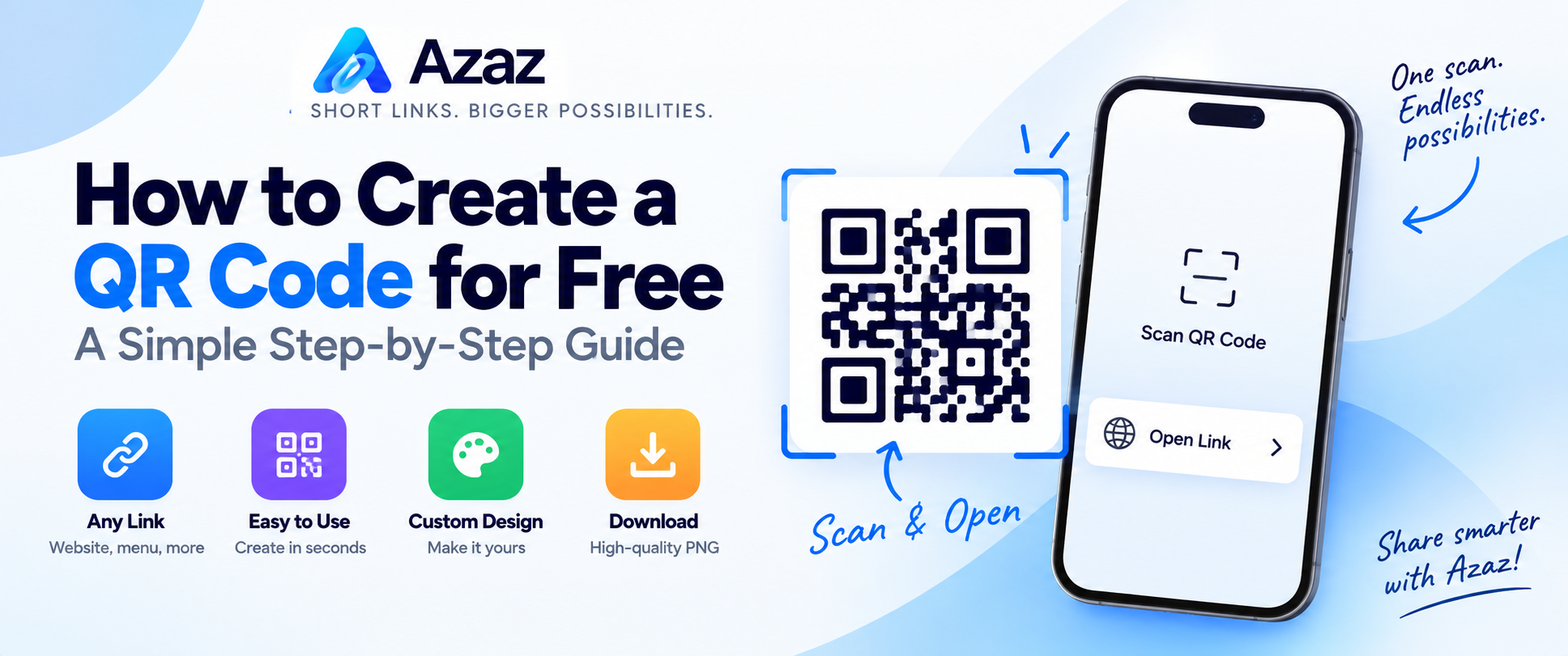
QR codes make it easy to share a website, link, menu, contact page, or other online content without asking people to type a long URL. A visitor simply scans the code with their phone and opens the destination.
With Azaz, you can create a QR code for free directly from your browser. In this guide, we'll show you how.
What is a QR code?
A QR code (Quick Response code) is a square barcode that can store information such as a website URL. Most modern smartphones can scan QR codes directly with the camera app.
When someone scans a QR code containing a URL, their phone can open the linked webpage without requiring them to type the address manually.
How to create a QR code with Azaz
1. Open the Azaz QR Code Generator
Go to Azaz QR Codes. You'll find the QR code generator where you can create your code.
2. Choose what your QR code will contain
Select the type of QR code you want to create and enter the requested information. For a website, paste the complete URL you want people to visit.
3. Customize your QR code
Choose the available design options to personalize your QR code. Make sure the finished code remains clear and easy for phone cameras to scan.
4. Generate your QR code
After entering your information, generate the QR code and check the preview.
5. Test your QR code
Before sharing or printing it, scan the QR code with your own phone. Confirm that it opens the correct destination.
6. Download and share it
Download your finished QR code and use it wherever you need it, such as on a website, poster, business card, menu, flyer, or other material.
What can QR codes be used for?
QR codes can provide a quick bridge between something people see and information they want to open on their phone. Common uses include:
- Website links: Send people directly to a webpage.
- Restaurant menus: Let customers scan a code to view a digital menu.
- Social profiles: Make your social pages easier to access.
- Events: Share event pages, schedules, or registration links.
- Business materials: Add a scannable link to cards, posters, flyers, and signs.
- Short links: Turn an Azaz short link into an easy-to-scan QR code.
Should I shorten my URL before creating a QR code?
You can create a QR code from a normal URL, but a short link can be useful when you also want a cleaner address to share separately.
If you have a long URL, you can shorten it with Azaz first and then create a QR code for the shortened link.
Tips for using QR codes
- Test before publishing: Always scan the final code yourself.
- Use enough contrast: Make sure the code is easy for a camera to recognize.
- Keep enough space around it: Avoid placing text or graphics too close to the code.
- Use an appropriate size: A QR code should be large enough to scan from its intended viewing distance.
- Check the destination: Make sure the URL is correct before printing the code.
Create your free QR code
Creating a QR code doesn't need to be complicated. Enter your information, generate the code, test it, and you're ready to share it.